Change access rights
Note
Machine translation from the German version. In case of doubt, the content of the German version shall prevail.
These instructions are aimed at administrators and users of file shares from IT.SERVICES. Depending on your individual You may not be able to make all suggested changes to access permissions. All changes to access permissions should be made on a Windows operating system.
User groups in the file share
The following examples distinguish between different users or user groups:
- Administrators (members of the administrators group; identifiable by the preceding _ character, e.g. _netapp-demo): These are the technical contacts named in the fileshare request and all loginIDs added by them as administrators.
- Users (members of the regular LDAP group, e.g., netapp-demo): These were added to the group by administrators.
- SEC_ITS_BAS_FILER_Administrators or ITS_BAS_FS_Netapp-Admin (Fileshare curators from IT.SERVICES): These are the administrators of the Fileservices infrastructure at Ruhr-Universität Bochum.
Standard configuration
Default configuration of file shares:
- Only members of the regular group can connect a file share as a network drive. Administrators must also be members of the regular group.
- Members of an administrator group have full access to their file share. Members of the regular group only have read and execute rights. The file share caretakers (SEC_ITS_BAS_FILER_Administrators) from IT.SERVICES have full access to provide assistance in emergencies. You can revoke this permission if necessary.
- The access permissions apply to the file share and all subdirectories and files contained within it.
- These instructions only work from computers that are members of the Ruhr-Universität Bochum domain. If you do not You would need to have a computer available for this, so you would have to open a separate ticket so that a computer from your area can be registered in the domain, or you can use the guide "Change access rights (without Active Directory)."
General information
The rights that a person/group can be assigned may include:
-
Full access - the person/group has all the rights that can be possessed on this object.
-
Modify - the person/group is allowed to edit existing files and folders.
-
Read & Execute - the person/group may open objects (files and folders) and execute (e.g. *.exe files).
-
List folder contents
-
Read - the person/group is allowed to open objects.
-
Write - the person/group is allowed to create new objects.
-
Special permissions - the person/group is allowed to perform special actions with objects. This includes the rights to modify the objects.
Information
Only remove the _LDAP group if you are certain you never want to be able to delete the folder administratively again. We do not recommend removing the _LDAP group, as users will eventually leave the university due to retirement and, in the worst case, no one will be able to delete old data that is no longer needed.
Editing access permissions
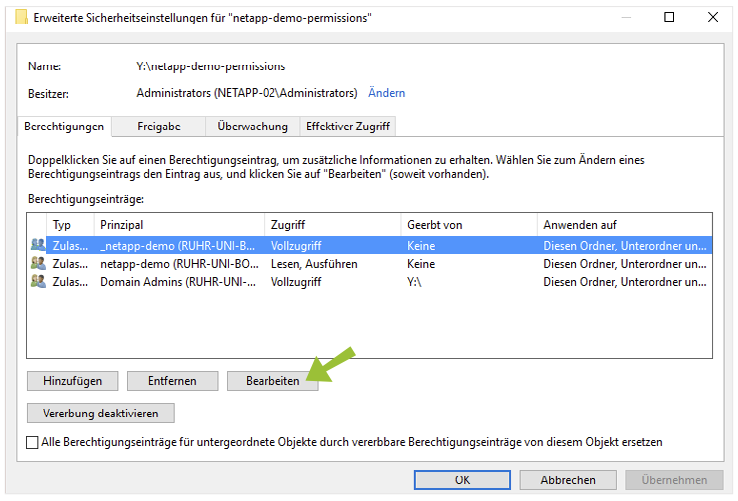
In the example scenarios, we are looking at the Fileshare netapp-demopermissions (connected as network drive Y:) with the subdirectories "ForAll", "ForUserX" and "SpecialPermissions". The changes are made by right-clicking on Fileshare or the individual directories and selecting "Properties ► Security ► Advanced" and then "Change permissions ► Edit" (see figure).
Individual access permission configuration
Depending on the intended use and customer requirements, there are different requirements for security settings and access permissions for data on file shares. We describe for several possible scenarios how you, as an administrator of a file share or as a user for your own data, can specifically assign access permissions.
- Full access for all users on the file share
- Full access for all users to individual directories
- Personal directories for individual users
- World-writable directories with special write protection
Full access for all users on the file share
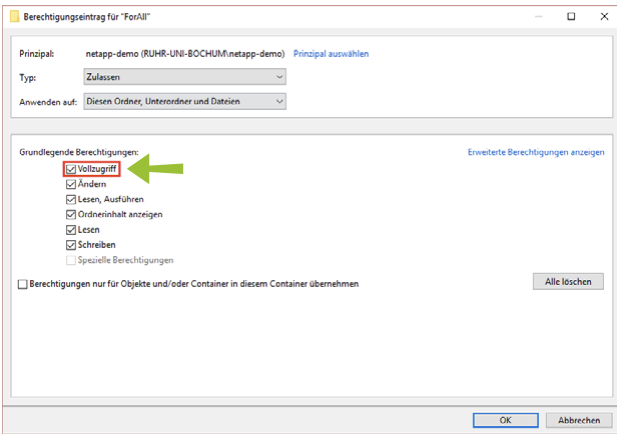
All users here have full permissions on the entire file share, allowing them to create, modify, and delete any directories and data, as well as set permissions themselves.
Full access for all users to individual directories
All users here have full permissions on the entire file share, allowing them to create, modify, and delete any directories and data, as well as set permissions themselves.
Share personal directories for individual users.
Step 1:
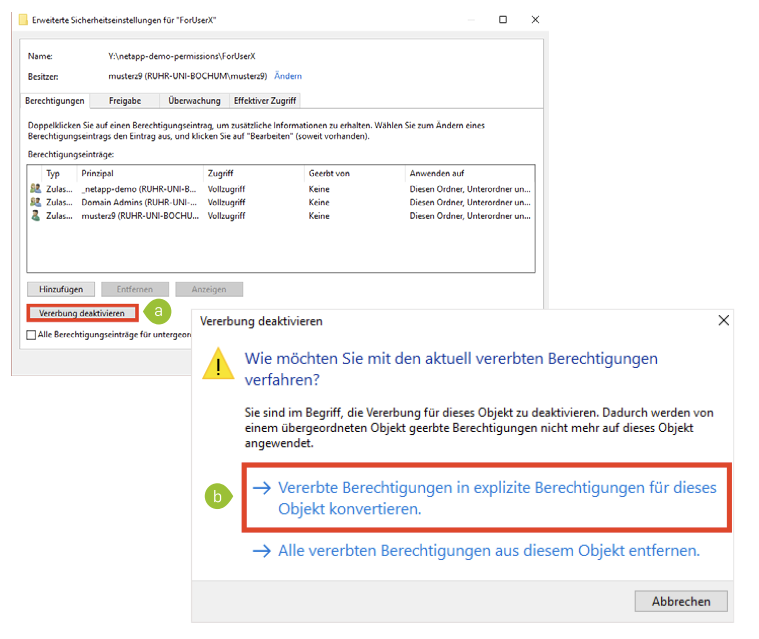
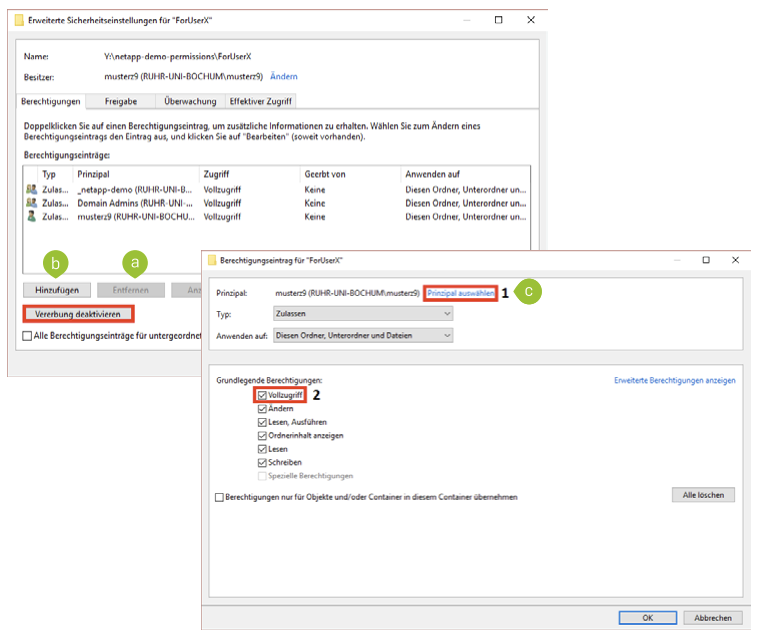
The personal directory should first be created by the administrator or the user. For this directory "ForUserX", inheritance of access permissions must first be disabled. Go to "Properties ► Security" and "Advanced ► Permissions" and click on "Disable inheritance" (a). Then select "Convert inherited permissions into explicit permissions for this object" (b).
Step 2:
Now, in the same window, select the group and choose "Remove" (a). Then, add the login ID of the user with the desired permissions using "Add" (b). These permissions should be applied to the selection "This folder, subfolders and files" so that the current permissions are inherited in subdirectories. This grants the individual user full access to the directory (c). Confirm with "OK".
Step 3:
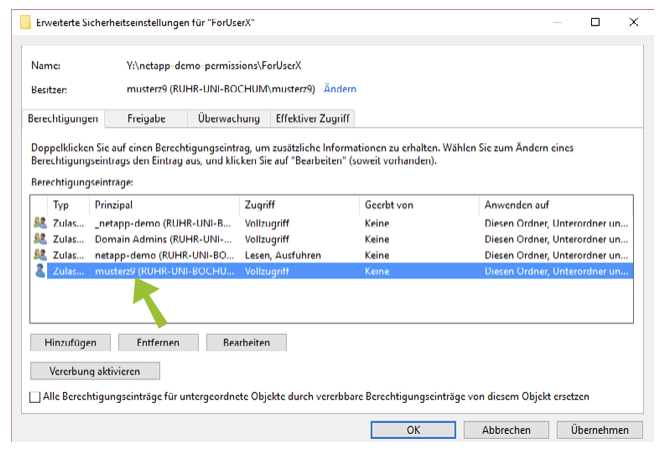
The desired result is therefore the private directory protected from access by other users. The access permissions for administrators and Domain Admins that are still included can also be removed if necessary.
World-writable directories with special write protection
In a directory according to "2. Full access for all users to individual directories," all users in the group can create, as well as delete, files and directories. As an additional security aspect, you can ensure that users, in addition to the general read permission, can create files and directories but can only modify or delete their own data (emulation of a Unix directory with a sticky bit). To do this, proceed as described below:
Step 1:
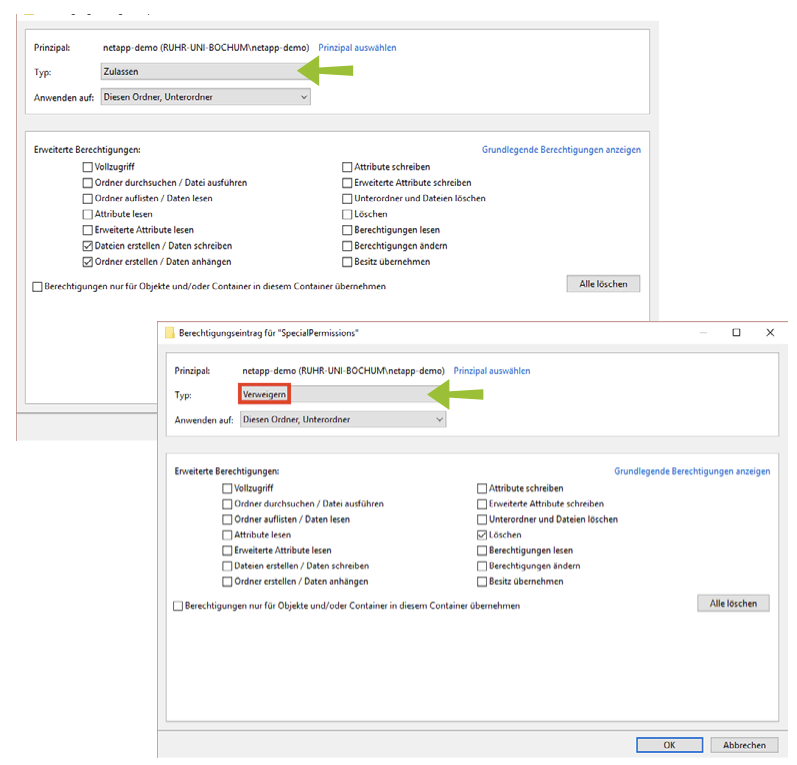
Right-click on the corresponding fileshare, open "Properties", navigate to "Security ► Advanced ► Change permissions ► Add".
- Under "Allow", place check marks next to the permissions "Create files / write data" and "Create folders / append data" for "This folder, subfolders". Confirm with "OK".
- Under "Deny" for "This folder, subfolders", place a checkmark next to "Delete". Confirm with "OK".
Step 2:
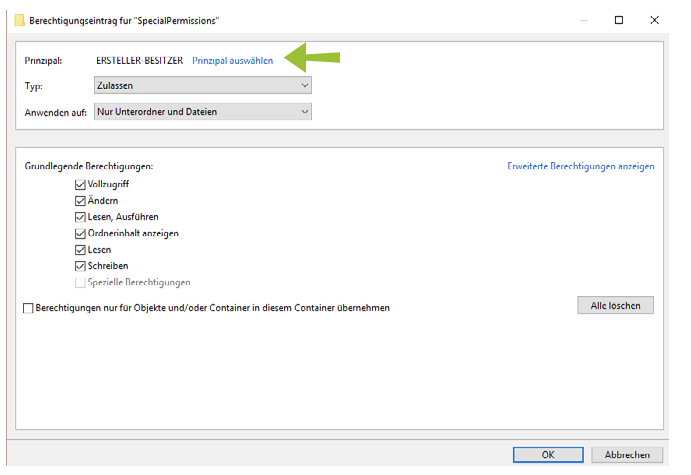
Select the principal "Creator-Owner" and under "Allow" for "Only subfolders and files", check the box for "Full control". Confirm with "OK". With these permissions, data can only be modified or deleted by the creator or administrators.