Manage webspace – Plesk customer interface
Note
Machine translation from the German version. In case of doubt, the content of the German version shall prevail.
This guide explains how to log in to the Plesk administration interface and manage your web space. Here you can upload your websites, manage domains, and make basic hosting settings.
Registration in the administration interface
Step 1: Access the Plesk URL
Open your browser and enter the Plesk login URL:
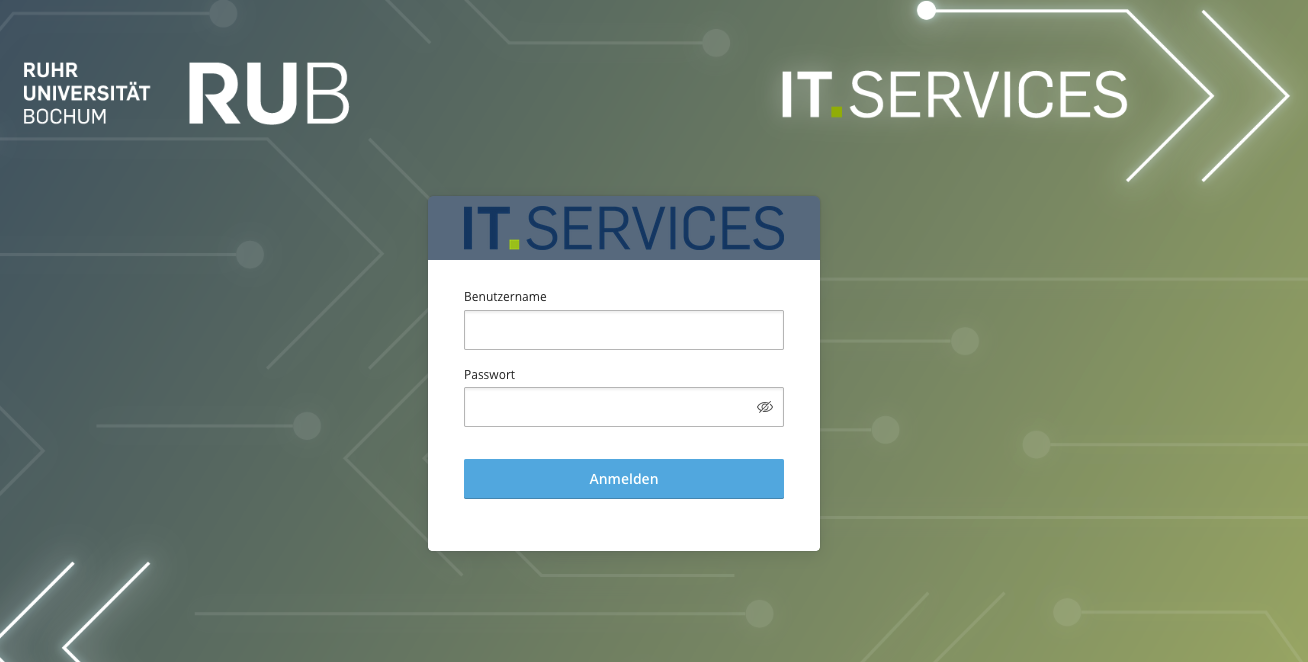
Step 2: Enter login details
- Enter your LoginID.
- Enter your password.
- Click on “Log in”.
Overview: Plesk Dashboard
After successful login, you will see the Plesk Dashboard. Here you will find an overview of your webspace and all available functions.
Important areas in the dashboard
| Area | Description |
|---|---|
| Websites & Domains | Management of your websites and domains. By expanding your domain, you gain access to all hosting functions. |
| Files | File manager for all files on your webspace. Here you can upload, edit and manage files. |
| Databases | Create and manage MySQL or PostgreSQL databases for your web applications. |
| Statistics | Usage statistics for your webspace (visitor numbers, bandwidth, storage space). |
| Account | Here you can see information about your account. Note: Password management is not available. |
Manage files
In the file manager, you can upload, edit, move, or delete all files of your website directly in the browser.
Upload files:
- Go to „Files“ in the dashboard.
- Navigate to the desired directory (e.g.,
httpdocsfor your website). - Click on “Upload” and select the files from your computer.
- Confirm the upload.
Edit files:
- Select a file in the file manager.
- Click on “Edit” (for text files such as HTML, CSS, PHP).
- Make your changes and save them.
💡 Tip: For larger websites, it is recommended to use FTP/SFTP (e.g., with FileZilla) for file transfer.
Manage domains
Under “Websites & Domains” you will find all domains associated with your webspace.
Expand domain
Click on the arrow next to your domain to access all available functions.
- Connection data: Displays FTP and database access credentials.
- Files: File manager for uploading and managing your website files.
- Databases: Management of MySQL/PostgreSQL databases.
- FTP: Setting up FTP access for file transfer.
- Backup and restore: Creating and restoring backups.
- Copy website: Copies your website to another webspace or FTP server that you manage.
- PHP: PHP version and settings for your web applications.
- Access to server and error logs.
- Git: Git repository management for version control.
- PHP Composer: Dependency management for PHP.
- SSL/TLS: Management of SSL certificates for HTTPS.
- Imunify: Security tools to protect your website.
- Password-protected directories: Protecting directories with a password.
Databases manage
If your website requires a database (e.g., for CMS like Joomla, Drupal, or custom applications):
- Go to „Databases“.
- Click on “Add database”.
- Enter a name for the database and select the associated website.
- Create a database user with a password.
- Note down the access data – these are required for configuring your application.
Display statistics
Under “Statistics” you will find detailed information about the usage of your webspace: - Resource usage: storage space, bandwidth, and other server resources.
⚠️ Note: Storage usage includes databases, files, logs, and backups. If the limit is exceeded (partially implemented as a soft limit), your website's functionality will initially remain intact. If you require more storage space permanently, an upgrade of your package is necessary. Otherwise, your webspace may be terminated.
Useful information
Official Plesk documentation:
- Plesk User Guide
Tools & Resources:
- Google PageSpeed Insights – Performance test for your website
Support
- In case of problems: its-webhosting@ruhr-uni-bochum.de
⚠️ Note: IT.Services assists only with questions regarding hosting (e.g., servers, access, Plesk), not with the development of your website (design, programming, content).
This guide is updated regularly. For questions or feedback, please contact support.